Author: CapnPilot

  • Reconnecting with Zotero and Finding The Truth

    In anticipation of next week’s Reclaim book club, which is starting on December 01 and being hosted by the lovely Amanda Schmidt, I’ve reinstalled Zotero. Zotero, if you’re not familiar, is a tool for collecting articles, web pages, and anything else you may want to save or cite down the road — designed for scholarship, but pretty useful in general.

    My last experiences with Zotero were in college, when I used it for my student work with the Digital Humanities department. We were asked to keep a bibliography of all the resources we used/read/referenced, to be published at the end of the year (you can check out mine here!) Part of my job was to do a (nearly) weekly blog post on various topics related to digital ethics and digital scholarship, so my bibliography got long.

    Revisiting it now, I’d probably want to export my old Zotero collection and pull it into a new account (and I’m a little scared it doesn’t exist anymore — it was at the time linked to my student email, and I can’t remember if I changed that).

    Currently I use OneTab to keep, uh, tabs on things I’d like to save. It’s great for cleaning up browser clutter, and for projects and resources I want to revisit. But it’s not so good for archival work, or for saving PDFs or HTML copies in case something disappears from the web. Zotero’s got plugins to connect to Chrome, Firefox, Edge and Safari, to pull resources easily & snag something for future reference.

    This is starting to sound like a sponsored post, but it’s not meant to be. It’s more a reflection on a tool I’ve let fall by the wayside, in the same way that I’ve let keeping up with digital ethics and scholarship news fall off my plate. It was a lot of fun, to do those weekly writeups; I’d trawl articles, collect a lot of different sources, and then distill them into a little “article” of my own that my supervisor could share with the department.

    (I wonder suddenly how my former supervisor would feel about my exporting an archive of my Digital Scholarship posts, and pulling it in here. There’s a lot of linkrot from that era, since the DS blog changed URLs a couple times when Carleton switched to Domain of One’s Own, and there haven’t been redirects put in place yet. It took me a bit of digging and some Reclaim insider tools to find the new site, and it’d be nice to have the old archive of my work somewhere I own. She’d probably be fine with it, she’s great. I’d have to go through and edit a lot of the links, though — in the spirit of citing your sources and resources, I used to cross-reference my own posts all the time.)

    I guess I’m thinking about this again not only in the context of the upcoming book club, but in the context of a book I’ve been re-reading: The Truth, by Terry Pratchett. It’s a Discworld novel, a satiric fantasy series that encompasses a lot of… sort of sub-series, following different groups of characters in different genres and situations, joined by the larger world everything takes place in.

    The Truth is a standalone, but it does count as a part of what’s commonly referred to as the “Industrial Revolution” sub-series, a collection of books that focus on new inventions or major social changes and how they affect life on the Disc; it’s my personal favorite collection. The Truth is specifically about the printing press, the invention of the newspaper (and how it evolved from one character’s newsletter — a topic recently near and dear to my heart, courtesy of running the Roundup), and investigative journalism surrounding a major political conspiracy.

    I often feel underinformed about the world at large, and I miss having a framework that made it easy for me to not only keep up but condense my findings and my thoughts. But I don’t have the time lately to do those heavily-researched blog posts anymore, or at least not the energy. They were never just for fun; they were fun, but they were work, and they were for a wider audience however small. Maybe with the book club, and with Zotero to help, I’ll be able to find something new to fill that niche in my life.

    There’s not any big revelation at the end of this post. I guess it’s a meditation on how I process the world, wrapped in a meditation on how I keep up with the world, wrapped inside a book recommendation, wrapped inside a tool recommendation. Go read The Truth, everybody. It’s an awesome book, and once you’re done, you can add it to your Zotero collection. #NotSponsored

  • So I Had Some Commitment Issues…

    Revisiting Git & GitHub

    So as luck would have it, a couple of things have dovetailed in my work recently. In my last blog post, I talked about the experiments I’ve been doing with HTML & CSS, building site files directly instead of using WordPress or another application. Ideally I’d like to learn more about JavaScript and PHP as well, so thinking about how HTML, CSS, JS and PHP files slot together is part of that. I also had to roll out my HTML/CSS site, my Hideous Creation (that’s its name now, I’m not taking it back) by manually uploading it to cPanel.

    This month I’m also working on revising our GitHub related documentation for this month. There’s only two articles, one on how to point custom domains and subdomains to your GitHub Pages site and one on how to… well, set up a GitHub Pages site (using the GitHub desktop app & Jekyll). My revisions are primarily centered around making the language more cohesive, double-checking that all our links work and our screenshots are accurate, and confirming that the process we’ve outlined is still up-to-date. That means that the best way to do it is to work through them myself.

    Maybe you’ve started to see where this is going.

    I didn’t have GitHub configured on my computer yet — I set up an account a couple months ago when I started working through some PHP tutorials, but never had any files that I actually would consider sharing. I was honestly a little nervous! It’s been a long time since I used Git, particularly from the command line, and I didn’t want to install the desktop app, since a) it wasn’t how I originally learned to use Git and b) it felt tantamount to giving up.

    Of course, to work through our documentation and update our screenshots properly, I am going to have to install the desktop app eventually, but I’ll live (and maybe, if I’m ambitious, I’ll add a new section that also walks you through using the command line). I’ve found resources that have helped me review and practice Git commands. And with the Hideous Creation semi-realized, I have something to put out into the world!

    So, what does that mean? No more excuses.

    The Tech Part

    GitHub does try and make it easy for you to start a new repository, right from the homepage. Maybe it’s just because I haven’t done a lot of work with my account, or my homepage is still set to the default configuration, but right at the front and a little left of center is a quick-start area for a new repo.

    GitHub’s “Start a new repository” feature, making my life easier.

    And after that, they provide instructions! They have a quick-setup option for people who’ve done this before, and then for those who haven’t, there are instructions on how to create a new repository or push a local repository to GitHub. Great!

    You’ll note that these are very informative, as long as you’ve already logged into GitHub through the command line.

    Except… GitHub does assume that you’ve already connected to your GitHub account on your computer. So these are the steps you’d take after you’re logged in… which I wasn’t. And I couldn’t remember how to. Oops.

    So when in doubt, tutorial time.

    I found a tutorial by Karl Broman titled “git/github guide: a minimal tutorial” which did start me at the very beginning (a very good place to start). Without going into tons of detail, the important bits were getting my GitHub account connected (with SSH) and starting/pushing my repository. Technically speaking, what I set up wasn’t a repository for Hideous Creation — it was a repo for “Hideous Creation – Git Experiment”, which was a duplicate directory for the original HC, because I didn’t want to use the directory where I was actually doing my work as the place where I was also doing all my Git experiments. (This was probably a smart idea, but it wasn’t a smart idea I had before I started working. This was a smart idea I had about four steps into the process, which meant I had to go back and start over.)

    Everything was working mostly really well until I tried to set up a .gitignore file and found that the directions in the tutorial were just straightup wrong — it implied that git add .gitignore would create the file, but add doesn’t create new things, it yoinks an existing thing and adds it to the list of things that’ll be committed to the repository. So instead it just threw errors because the command was trying to look for a file that didn’t exist. A bit of googling later, and GitHub’s own documentation informed me that the command I wanted was touch .gitignore. So, checked off that step.

    And then I hit a weird patch.

    • I got all my files added (git add filename1 filename2 filename3 filename4 filename5…, etc.)
    • checked that they were ready to go (git status)
    • got connected to the repository I’d already made on GitHub (a little late in the game, but no big deal), which based on the tutorial was git remote add origin git@github.com:username/new_repo, but here was git remote add origin git@github:CapnPilot/hideouscreation-gitexperiment [Note: this is how you connect to the repo through SSH, GitHub’s instructions in the screenshot above are oriented towards connecting with HTTPS]
    • created a commit (git commit -m "My first commit")
    • and tried to push that to the repo (git push -u origin master)

    Which didn’t work.

    In fact, I tried a couple times. None of my commits were getting pushed.

    Note: I didn’t get any errors, so nothing was wrong with the syntax of my commands (that I knew of), but when I went to GitHub and looked at my repo to check my work, there was nothing there. Nothing had been pushed. Which was a little weird.

    After a whole bunch of puttering around and cross-checking things, I noticed that in GitHub’s original instructions, which were oriented towards connecting your repo using HTTPS, the formatting was always git remote add origin https://github.com/CapnPilot/hideouscreation-gitexperiment.git, with that little .git extension on the end being what particularly caught my eye. That extension wasn’t included in the tutorial, but it seems pretty likely that the author thought it would be well-understood.

    But I missed it, and in doing so I’d connected my local directory to a GitHub repository that didn’t exist using the wrong remote URL. What I needed to do now was to replace my old work, making sure to keep using SSH instead of HTTPS despite GitHub’s original instructions.

    I was worried I’d have to fully remove the incorrect remote URL and replace it, and that removing it would break something, but nope. Turns out you can just switch remote URLs! That was actually something I found in GitHub’s documentation, under “Managing remote repositories: Switching remote URLs from HTTPS to SSH.” And you don’t actually have to be switching from HTTPS to SSH to make this work. You can be switching from an incorrectly configured SSH remote URL to a correct one, and it’ll still be A-OK.

    The ending is a bit anticlimactic to describe: I re-added my files, re-committed them, re-pushed the commit, and it worked. But after the stress and irritation of figuring out what I’d done wrong and whether it was fixable, it felt really cool to refresh the page and finally see my work come through.

    I’ve written a pretty epic saga in order to describe what’s essentially, “I set something up, broke it immediately during setup, and then fixed it,” but I’m pleased. It’s fun to putter around and try stuff and experiment. I like being able to pull different areas of my work together into one cohesive whole. Working with Git again feels one part familiarity, one part learning, which is always a good zone to be in. And I still haven’t actually gotten to start on the GitHub Pages parts, so there’s more to do yet.

  • The Finger-painting Approach

    In the midst of learning about containers and PHP (no blogging on that yet) and daydreaming about how to put together my own PHP/JavaScript site/application/what-have-you that’s a tool exactly tailored to what I need, I decided to go back to basics: HTML, CSS, and nothing else.

    I’ve messed around with HTML and CSS before, but it will have been almost three years, in, I don’t know, February? Maybe less. CSS in particular is a terrible horrible minefield, so I wanted to know more about how that works. I messed around with JavaScript some about a year ago, and before that in May or June of 2018, but I remember almost none of it.

    So I built a monster.

    Seriously, go take a look. It’s right here at pilotirwin.com/hideouscreation/. It’s so ugly. I love it.

    There’s a lot of freedom in letting yourself be absolutely terrible at something. I love following tutorials, it’s probably 95% or more of what I blog about, but a tutorial is designed to walk you through carefully designed steps so you can get to a polished, or at least decent-ish, final product. But I think there’s something to be said for the finger-painting approach, where you take amateurish, basic knowledge, and make something terrible, and delight in all your mistakes. And I know I’m not alone in this, but making this nonsense has really reminded me of it.

    Everything about the page is ridiculous. It’s blatantly stream-of-consciousness, written as sort-of notes to myself even as I was writing. It’s documenting my process without actually really explaining the steps I’m taking (just “Hm, I wonder how you make THIS page element” followed by a page element that isn’t really anything), which means that if you want to figure out what was going on at any given time, you’ll probably have to back-engineer from context.

    And I’m really happy with it! It was quick and experimental, which is something I struggle with — as I said, I love tutorials, but I always want to sit down and carve out hours at a time, which is very hard for me. This was done sporadically across yesterday and today, and giving myself the freedom to be bad meant that I could be speedy, since I didn’t have to follow along with anything. It was all “Oh, that could be interesting…” followed by either “I think this is how I remember doing that?” or a two-minute search for exactly what I needed.

    I’m even going to let this blog post be short and silly and amateurish! I’ve churned this out in maybe fifteen to twenty minutes because I want to publish it before I go to lunch and I’m very hungry, so no tags or categories here, goodbye and have a nice day.

  • Containers Workshop Week 1: Hello, World!

    Just using this space quickly to type up some thoughts about Week 1 of the containers workshop we hosted in July. For a variety of reasons I’m only now getting the opportunity to work through the exercises, one week at a time, so here we go.

    Week 1 covered an introduction to containers: what they are, why they’re useful, where the idea comes from, and how to get started. Jim likened digital containers, which I often reductively describe as “scalable micro-servers”, to real-life shipping containers: a way to package a specific thing or set of things (in this case, softwares) in a way that keeps them isolated and secure, that standardizes how things are organized, that keeps them flexible and easy to rearrange, and that reduces the cost of (in real life) shipping or (on the web) hosting.

    Getting started meant going through the Reclaim Cloud interface, which I was already somewhat familiar with. We covered how to locate the Settings area, how to set up a new container using the marketplace, where that container and its nodes (component sub-containers) live, and how to access the settings, configuration, and terminal for a given node.

    The exercise for the week was to set up a Docker container using the marketplace’s installer and then use the terminal to run the command docker run hello-world. The tutorial video also showed how to poke around inside the environment topology, how to find a given container’s settings and file manager, how to create new files and folders, and several other things.

    This was a good combination refresher-intro — it helped me refamiliarize myself with tools I’d already used and understand a little more about how they work and what they’re made up of. It was also useful from a terminology standpoint, as that’s often where I’ve had issues in the past — while I can conceptualize things, understanding what a person or a tutorial is referring to with a given term can be really difficult for me.

    Questions and Takeaways:

    • I was still pretty unclear on what actually happened when I ran the docker run hello-world command. Something definitely ran, because the terminal printed out some introductory information, but when I navigated to the URL for my environment, I got an error that nothing was there.
    • While the container can just run the command and stop, it’s still active in the background and using resources — so what’s it using them for, if it isn’t doing anything?
    • How would I set up/program an environment to continue running indefinitely? I know it’s possible because that’s how Reclaim Cloud applications run, but I don’t know what I would need to do if I wanted to develop my own little application.
    • For that matter, how would I build custom Docker images for those little applications?
    • I need to review setting up SSH keys so that I can choose between the Reclaim Cloud terminal and my local terminal if I want.
  • Goals for Gravity Forms

    For the month of June, I’m participating in Reclaim’s Gravity Forms flex course, where we’re learning about the tool Gravity Forms and how to use it to accomplish great things. So I’m recording some of my plans in the hopes of laying them out a little more clearly for myself. If I know what I want to do, that’s a pretty big step in being able to do it.

    I’ve thought idly about the idea of an audio drama database for years. Quick terminology: audio dramas are fiction podcasts, usually with multiple actors but not always, and they’re getting more and more popular. I used to be quite ahead of the curve, but now– well, a bit less so.

    By database I’m thinking an entry for each show, which can be submitted via the form, covering:

    • Title
    • Network
    • Website
    • RSS feed
    • Quick descriptor tags (sci-fi, fantasy, small cast, single narrator, comedy, drama, etc.)
    • Summary
    • Cast (?)
    • Crew (?)
    • … and maybe some other things I haven’t thought of

    Cast and crew are maybes mostly because I’m not sure how to format and standardize them yet, and they have the potential to seriously bloat an entry. Maybe something along the lines of a text box for name, dropdown description of role (“Writer”, “Director”, “Producer”, “Sound Designer”, “Actor”, etc.)… and then citation-inspired formatting. Who knows.

    This is also likely a first draft; if I were ever to iterate on it, it would probably be a good idea to get feedback from the actual audio drama community on what information they think would be relevant (I could collect it using a Gravity Form!).

    Ideally I’d like to be able to search and filter based on multiple tags (so people could narrow down a search to something along the lines of “sci fi + single narrator + drama” and get a recommendation for exactly what they’re looking for), but that’s probably a different plugin, and probably not something I have the capacity to write myself… maybe. Who knows? Maybe writing WordPress plugins is my next project after this.

    I’ve toyed with the idea of having an additional form that people can use to submit reviews, and then maybe have a way to append them to the entry Comments is probably the simplest way to go about that, but I’m on the fence. Are reviews something that would have a place in a database like this? Is it not enough to collect information in a centralized place?

    And the last question is — how to verify this information, and OK it with the crew of the show? Preventing spam is always a concern, as is preventing just straight-up fiction. But that’s a question for the future. For now, I’ll need to get building.

  • My #1 Slack Emoji Hack

    (And by #1, I mean “brand new”.)

    Today I learned a thing, courtesy of Taylor Jadin.

    One of my ongoing responsibilities at Reclaim is to curate and put together the Reclaim Roundup, our monthly newsletter that collects all of the announcements, blog posts, new support documentation, event resources, and staff picks, and sends them to people’s inboxes so they can see what we’ve been up to behind the scenes. This means that I periodically — about once a week — crawl our Slack looking for relevant links to collect in the Asana project we use for the newsletter.

    One of my three default emoji reactions in Slack is the sparkle emoji, or ✨ (if you didn’t know that you can set your default emoji reacts, you can! You’re not just bound to the three suggested ones, or the three you end up using most frequently! It’s under “Messages & media” in your Preferences.)

    Slack's section for emojis setting. "Show one-click reactions on messages" is checked; the available options are "My most frequently used emoji" and "Custom". "Custom" is selected, with the three chosen emoji as a thumbs-up, a sparkle, and a starry-eyed face.
    Custom one-click reactions — I use thumbsup, sparkles, and starry_eyed.

    But that’s not the hack.

    Recently I noticed the “Add Emoji” option in the larger emoji-picker and got curious. It turned out to be super easy to add a custom emoji for our Reclaim Slack, and I’d been wanting a special one to indicate something along the lines of, “Wow, I’m definitely putting this in the newsletter!”

    Did you know there’s no paper airplane emoji?

    There is now.

    But that’s still not the hack.

    The hack, as taught to me by Taylor Jadin, is this: you can search by emoji. Even custom ones. Which means that if I react with a paper airplane to a message containing a link I want for the newsletter, I can always go back and crawl specifically messages with paper airplane reacts on them.

    The Slack searchbar, filled with the text "has" and then an emoji of a paper airplane. Below it is the same text and emoji, with the option, "Press Return to search".
    The way to get an emoji like that is to type :emojiname: — here, it’s :paperairplane:.

    And once I do…

    A blog post by Taylor Jadin titled "Installing Foundry on Reclaim Cloud", with a short preview of the text. Under the message are two emojis, a sparkle and a paper airplane. Text: "I’ve had this post sitting incomplete in my drafts for a long time! This won’t be a comprehensive tutorial on foundry itself after install, but I want to cover the basics and the Reclaim Cloud specific things that you will need if you don’t want to have to worry about manually starting the foundry application every time you restart a container (the foundry guide doesn’t cover this). You can also run foundry in Reclaim Cloud using docker containers, but there are no officially maintained..."
    A link to one of Taylor’s blog posts, as searched up in Slack using my new paper airplane emoji.

    Now granted, it’s not perfect — what if I forget to react on something? I’ll probably still do an end-of-month crawl through channels anyway just to be safe. But this trick is going to make my life way simpler — and all I really wanted was a special emoji.

    Additionally, here’s the link to Taylor’s blog post in the image, which is about installing a custom application in Reclaim Cloud– in this case, the virtual tool for tabletop games, Foundry. Both the app and the post are pretty great, and I’m now definitely considering Foundry as a viable option for my own games. Check it out!

  • My RS-Quest into RSS

    Impetus

    So recently (not that recently) we were setting up the first edition of Reclaim’s monthly newsletter, the Reclaim Roundup. We weren’t just talking about what content would go into it, or how to structure that content, though we were doing that too — we were also doing all the mechanical bits, like getting Ghost set up, mapping domains, testing subscriptions and experimenting with the mass mail tools, and things like that. And one thing that came up was “Do we have an RSS feed for people to subscribe to, if they don’t want to use email?”

    The answer, by the way, is yes. Here’s the Reclaim Roundup RSS feed. Go check it out.

    But this got me thinking outside the context of the Roundup, too. My familiarity with RSS feeds is as a way of distributing podcasts through podcatchers. Podcasters will send their RSS feeds to a podcatcher like Apple Podcasts, Spotify, or (my podcatcher of choice) RadioPublic. People subscribe to podcasts of their choice on the podcatcher, which pulls together all the episodes from those original RSS feeds — but actual listeners don’t touch the RSS feeds.

    So for me, RSS feeds have always been a distribution tool for creators, not an aggregation tool for audiences. I knew, in some way, that individual people do subscribe to RSS feeds, but in my head I always imagined it as something pretty close to an email newsletter anyway, so the distinction didn’t hit until Taylor asked that question.

    And then I got curious.

    (Sidenote: the other reason that I decided to act on this is because I wanted to subscribe to Codepen’s newsletter, SPARK, but I didn’t want to make an account and they don’t have an option to do that outside the RSS feed that I could find. This is a journey built on both discovery and spite.)

    Execution

    I wanted to experiment with RSS feeds, so, perhaps too predictably, I literally just googled “rss feed readers”. This brought me to the following article: The 5 best free RSS reader apps in 2021.

    Now, to be fair, I have no basis of comparison. It’s not like I’m looking to switch away from my current RSS reader. So I picked Inoreader, because I liked the idea of being able to tag articles and then search through them. I got set up yesterday, and then spent an hour or so looking up a couple of RSS feeds, subscribing to them, and then poking around Inoreader’s interface.

    Experience

    So far, it’s been okay! My expectations were a little unrealistic just because I was coming into this with podcatcher features in mind, and it really isn’t a specialized podcasts-only tool.

    My biggest frustrations so far have been with Inoreader’s documentation. They have a blog that collects things, but they don’t seem to have anything of the very basic sort of “This is a feature, here’s where you find it, here’s how beginners use it, here are the advanced tips”. There are lists of very breezy, brief overviews of features, but those have an annoying habit of “Here’s a feature that’ll do [X]! But we won’t tell you or show you where to find it, and we won’t give you any specifics on how it works.”

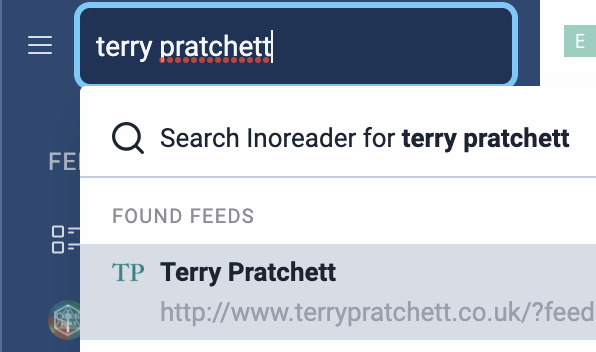
    The biggest example so far has been the Search feature, which I found a bit unintuitive. There’s no “Search” page that’s clearly labelled anywhere, just a search bar in the top left corner when you have your menu open. That’s fine! But using the search bar defaults exclusively to searching for new RSS feeds that match your keywords.

    When you search, Inoreader offers previews of search results that you can click on directly — but only for new RSS feeds, not articles or ones you’re already subscribed to.

    To search for articles, etc. within the feeds you’re already subscribed to, you have to click “Search Inoreader for [keyword]” and that will take you to a page with those search results, which seems silly to me. (And remember before when I said there was no labelled link to take you to an overall Search page? One does exist! This is one of the only two ways I’ve found so far to get to it.)

    So I’m a bit irritated about that. The way to find a new feed is already very obvious — under the Feeds section, there’s “Add new”, and that takes you to a page where you can search for new feeds. I don’t need a second place to do that, and even if I did, I’d prefer to be able to see both types of search results in my search previews rather than just feeds I’m not subscribed to.

    But aside from that, Inoreader has been all right, and I’m enjoying the concept of an RSS reader. It does look like my instinct is to use this mostly for podcasts, in which case I may end up right back at a podcatcher so I can have more control, but for now I’m enjoying my exploration.

  • Running Ghost on Reclaim Cloud

    So in my last post, I mentioned offhand towards the end that I was experimenting with running Ghost on Reclaim Cloud, and while it was working all right, I was running into this error when I tried to update to the latest version:

    A circular and frustrating error.

    Essentially, I started with the default one-click installer of Ghost, which is set up originally by Jelastic. Ghost has some documentation for installing/updating Ghost-CLI, which is a tool for installing or updating Ghost in turn. So, naturally, I installed Ghost-CLI with the hope of being able to update Ghost from 4.5.0 (what comes out of the box with the one-click installer) to 4.32.0 (the most recent version, released on GitHub five days ago).

    It did not work.

    From the error above, you can see that Ghost-CLI is up and running, and that everything I need for Ghost is present in the directory. But when I try to update, it says that I can’t, because Ghost-CLI commands don’t work on git clones, zip downloads, or versions of Ghost earlier than 1.0.0. Then it suggests I try ‘grunt update’.

    (When I tried ‘grunt update’, I got an error saying that Grunt didn’t exist in this directory. I installed Grunt using the steps in their Getting Started doc, got an error saying that Grunt couldn’t be properly installed because Grunt files already existed in this directory, reran the command, and got told Grunt didn’t exist in this directory.)

    Jim Groom and I got together on a Slack huddle to try and troubleshoot this, but ended up not having any luck — we went back and forth in this lemniscate loop of “Update Ghost! No, update Grunt! No, that’s working! No it’s not!”. Finally we had to stop at a question we weren’t really sure how to answer: is the one-click installer using a Git clone? If it is, how would we get in to update it?

    That’s not something we can really see under the hood, because it’s part of the setup process. Instead Jim, thinking outside the box, said, “What about Docker?”

    I’ve posted a little bit about Docker before, in the context of a tutorial that I was working through alongside some other people at Reclaim (that post series is currently on hold, To Be Returned To), but what’s relevant here is that Docker lets you set up containers for various apps, including ones from the Docker Hub, where people can share their work with the world. Including, for example, Ghost.

    Setting Up Ghost through Docker through Reclaim Cloud

    We actually have some documentation on setting up a Docker Engine environment written by Jim and available here, as part of an article on setting up Peertube. The concept’s pretty much the same, so I won’t reproduce it here, but once you’ve hit the big green Install button, here’s where the work diverges.

    Setting Up Ghost on Docker

    First, get into your web SSH tool. Here’s a quick look at what that looks like on my setup using the environment ghosttest2, showing both the button you want and the command line it’ll pull up.

    A Docker Engine node with the web SSH button highlighted in red.

    From here, the Ghost image on Docker Hub includes instructions for how to set up the image from the command line. Run one of these two commands, depending on what you want; we used the second one.

    Commands for setting up a Ghost container through Docker using the command line.

    Which yields, for my ghosttest2 environment, this:

    A default Ghost site, installed on http://ghosttest2.us.reclaim.cloud:3001/

    And there you go! This currently extremely basic site is going to be my testing grounds for experiments with Ghost as a platform. You can check in if you want, but be warned, it’s probably going to be pinging back and forth, up and down, as I turn the Reclaim Cloud environment off and on.

    For the Future

    • making sure the site is secure in browser
    • figuring out how to not have the port in the URL/general URL cleanup
    • making posts and visual customization (Ghost also recently put up new features in celebration of Cardmas, and there’s an article on planning a newsletter I’m hoping to read soon…)
    • Revisit the question: how does the one-click installer set up Ghost, and how can I push it to the newest version? Can I update using Git in the command line?

    All this and more, in FUTURE INVESTIGATIONS! (maybe)

  • Reclaim Cloud & Troubleshooting Dates

    I actually did this work on Friday, but I didn’t have the opportunity to write it up – just took a couple of notes so I could put this out today.

    As of Friday, I’ve figured out, at least for now, how I want to store and retrieve dates. When I retrieve dates, I want them to be reverse chronological, so the most recent date can be accessed easily. For now, that means that my retrieval function reads the CSV where the dates are stored into a list, then reverses the list & returns it. Whatever asked for the dates to be retrieved receives a list in reverse chronological order. (My write function appends the date to the CSV, simple enough.)

    During the initial working-out-the-kinks phase, the retrieval function actually iterated over the reversed list, printing off the dates rather than returning them. But after that caused some issues with redundancy, that got revised to returning a list.

    I also ended up setting up a helper function for the printing which essentially iterates over the list, appends each item to a string with a new line at the end (so, 2022-12-17 \n), and returns that very long string (which gets longer with every update), which can then be printed by whatever requested the dates. This is super inelegant, obviously, so a priority is going to be to figure out a nicer way of handling this.

    Another priority is going to be just… figuring out how to denote updates that happen on the same date. Every time I run the program to test it, it’s counted as a separate update and logged to the CSV. This is good! This is what I want! But I ran this program twenty-three times on Friday, so now the datelog reads (reverse chronologically):

    2022-12-17
    2022-12-17
    2022-12-17
    2022-12-17
    2022-12-17
    ...

    … and so on. You see the issue.

    I put together some questions to ask myself about how to solve this. Still haven’t answered them yet, but essentially they consist of: how do I denote the number of updates on a particular day? How do I store that information as separate from the date, and access it easily to update it?

    One way, which sounds very clunky to me, would be to store the date alongside a number of updates (so, 2022-12-17 for the first update, and then edit that to 2022-12-17 (2) for the second update, and so on. The formatting is still under consideration). The second way, which is even worse, is to store the information as above (every date listed neatly for every time updated, which will get super long very fast), and then every time I would need to return or display a list of previous dates, iterate over the information so that I can return it in a nicer format. No, thank you.

    I think the next step might be MySQL, which means that I’ll have to (re-learn) SQL and how to use it in Python. I’ll also have to pick a database, which will probably be MariaDB, mostly because I picked it randomly from the available MySQL databases when I was setting up the Reclaim Cloud environment which I’m hoping to test this on.

    Oh, right, I have some Reclaim Cloud environments now. The environment for this project isn’t currently online and won’t be for the foreseeable future, unless it turns out I absolutely require the MariaDB from Reclaim Cloud to store the information. Which I probably will.

    For the other environment, I’ve also been poking around a little bit with Ghost — not much yet, as I’m still working on getting it updated to the newest edition from 4.5.0, which is what I’m currently on. Once I do, I’ll be experimenting with the blogging features, as Reclaim is considering using it for our newsletter, which start being released at the end of January 2022. That environment is also offline for now until I figure out what I’m missing trying to update from the command line. Currently I’m dealing with this error:

    A very frustrating error.

    What that sums up to is mostly “You need to update using Ghost-CLI, but you can’t, because you didn’t install this using Ghost-CLI” (I used a one-click installer). Once I get the answer I’ll be able to write this up better, maybe as an article for our support docs, but in the meantime: still working on it.

  • Logging Stats Across Sessions

    So it’s been a while since I’ve made a blog post, but I’ve been working on my wordcounter/writing tracker app, and what I’ve been tooling around with recently is the question: how do I track information across sessions? By which I mean, if I run the program in Terminal once, how do I make sure that whatever information I log that time is still there the next time I run the program?

    The answer on its face has been pretty simple: read and write to a CSV file. I haven’t done this in a long time, so I had to look up the methods and practice them a little bit (documentation here), but given that they have examples in the documentation, that part wasn’t so difficult. The problem was the questions this raised, which I don’t really have answers for right now.

    • When I add an update and check whether the update’s date is the same as the most recent update (ie, have I already added an update today?) do I want to:
      • log the date every time (so for three updates on the same day, 12-14-2021, 12-14-2021, 12-14-2021)?
      • log the date and the number of times that day I’ve updated (12-14-2021, 3 updates)?
      • not reflect the number of updates in a day at all (12-14-2021, no further information)?
      • (If I choose option 1, how do I efficiently turn that information into something meaningful for the user? If I choose option #2, how do I store that information neatly?)
    • Where/how do I save my writing streak and my total words counted?
      • If I save the information in my date log CSV, how do I keep this information from getting messy?
      • If I save the information in separate CSVs, how do I preserve relationships between the data?
    • How do I efficiently log and retrieve my data?
      • Do I try to record dates in reverse chronological order, most recent first (aka not what these functions are designed to do)? If so, how do I retrieve only the first row?
      • If I go with the flow and record dates in chronological order, appending the newest date to the bottom, is it possible to retrieve only the most recent row, or do I have to read through the entire file?

    I’m pretty sure the answers to at least some of these questions can be solved with some careful Googling, but I’m a little worried that one or more of them may be “Go learn SQL, you doof”. Which is definitely possible. It’s just a pain.

    And eventually, the looming/haunting question: how am I supposed to turn this into a web app? But that’s way too big to tackle for now, so we’ll build that bridge when we get to it.

    [Super secret end-of-post sidebar: should I have a Git repository that I push to? Should I be pushing alongside every blog post? Would that be elegant/thoughtful/informative? So many questions today.]

css.php